
Let the video show what words cannot.
Show the table opening, the latch moving, the product in use. We make video easier to start and follow, while keeping the page useful before anyone presses play.
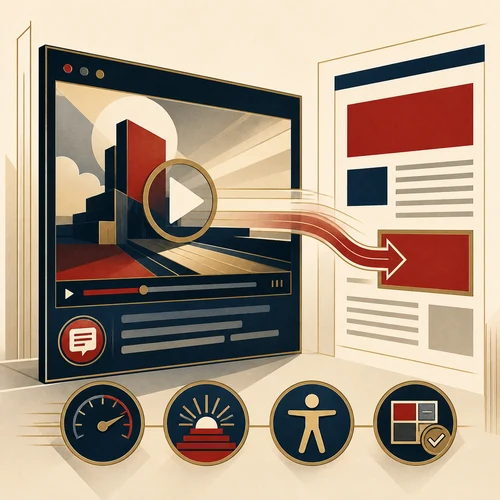
Give people a reason to press play.
Imagine a furniture shop selling an extending table. A still photograph shows the wood and shape. A useful video answers a different question: how does the table open, and what does the buyer have to do?
Choose a preview that shows the actual product and say what the demonstration covers. Keep dimensions, price and other buying details available as text. The visitor should not have to watch a video to find out whether the table fits.
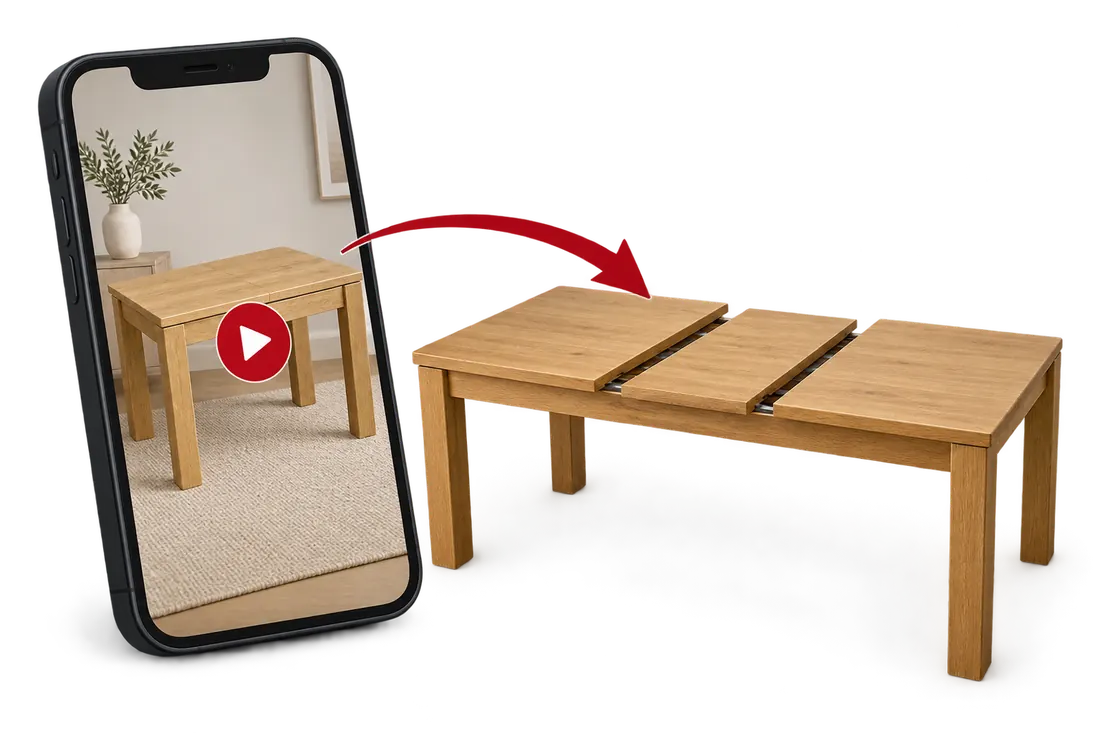
Illustration: the preview introduces the table; the demonstration reveals how it extends.
Read the explanation from the video
Show what words cannot explain. A picture shows the shape. Movement can show how it works.
Show the change. Let the action explain. Pull the table apart. Insert the leaf. Show the result. Same table. More room.
Look closer. One small detail can make it click. The latch locks into place. Guide the eye to what matters.
Give a reason to watch. Show the value from the start. A clear result gives the action a purpose. Here’s how to make more room.
Explain without sound. Make the point visible. Pull the table apart. Insert the leaf. Lock before use.
Choose video when it explains. Show the change. Show the detail. Make the point clear.
Find out when the waiting starts.
A slow page and a slow start to playback need different checks. Test both on the same phone and connection, with the rest of the page visible.
Before the viewer presses play
For an optional demonstration, show a well-sized preview and avoid fetching the whole video before it is wanted. A click-to-load preview can also defer a heavy third-party player. Check the network activity: loading hints do not guarantee what a browser downloads. See web.dev’s video loading guidance.
After the viewer presses play
Check the wait for the first moving frame, then watch for pauses, blurry detail and controls that are hard to use. Reduce unnecessary data without losing the movement or product detail the video exists to show. Reserve the video’s space so playback does not push nearby information around.
Show the step people would otherwise miss.
In our imagined table demonstration, the latch sits beneath the edge. A distant view can hide the very thing the customer needs to see. Cut to a close-up, show the movement clearly and keep the shot long enough to follow it.
Caption spoken instructions accurately and in time with the action. Explain essential visual steps too: “Slide the latch beneath the edge” carries more information than “Move this.” Depending on the content, that explanation may need to be spoken as well as written. Check keyboard operation, pause and caption controls. Use W3C’s accessible media guidance to decide what the video needs.
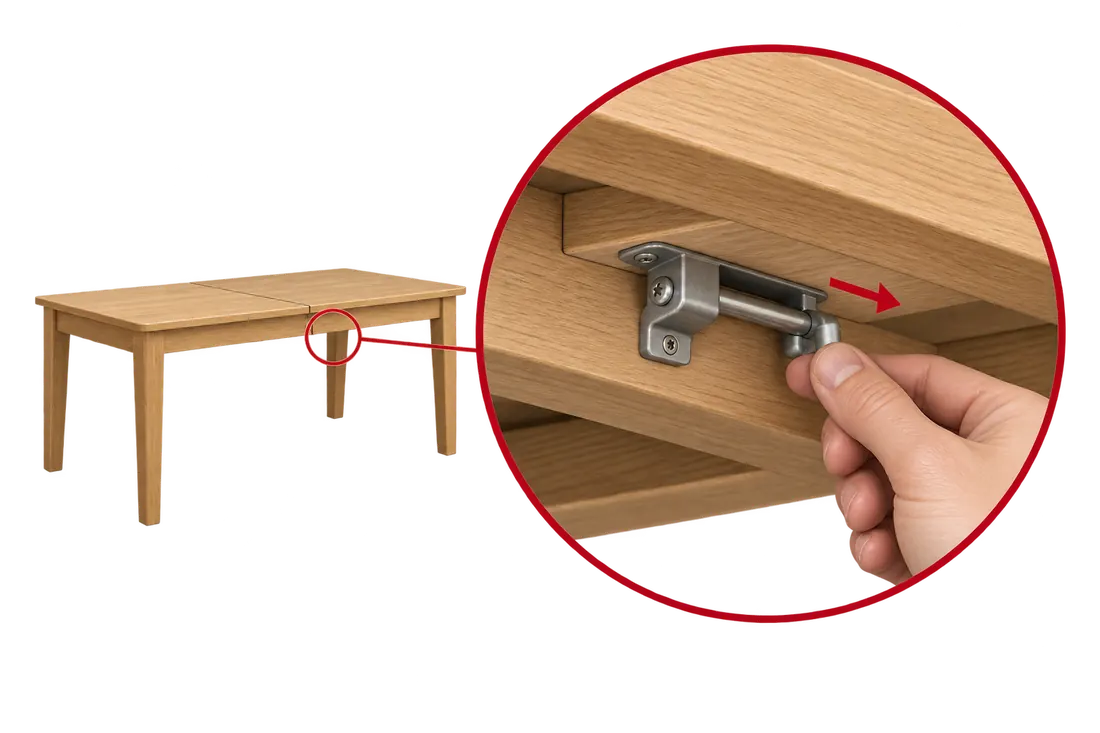
Illustration: the close-up makes the latch and its movement visible.
Choose the setup by what it needs to do.
Should we host the file ourselves?
A hosted player can handle delivery and offer useful playback features, but its embed can add downloads and scripts. Serving the file directly gives you control of the page presentation and makes suitable files, captions and controls your responsibility. Compare the required features and measured behaviour of each option.
Will a smaller file fix the page?
It can help if excess video data is the problem. It will not repair a confusing preview, missing captions or an awkward player. A large poster can delay the opening screen, while an embed can add scripts or shift the layout. Identify the cause before replacing the player or compressing the file again.
How do we know the change helped?
Repeat the same task before and after the change. Compare page loading, the delay after pressing play, playback interruptions and the detail visible on a phone. Then ask someone unfamiliar with the product to explain the demonstrated step. Fast playback is only useful if the viewer understands it.
Make the next click worth watching.
Send the page and video source. Tell us what the viewer needs to learn, where the delay or confusion happens, and which device shows it. We can then identify the part that needs work.