
Release checks
MCP Abilities – Check Runner: a finished check is not always a pass
Zero errors can still mean a failed check. Check Runner connects your AI assistant to official WordPress Plugin Check and treats warnings as failures too. Use the result to decide what needs fixing before a plugin ships.
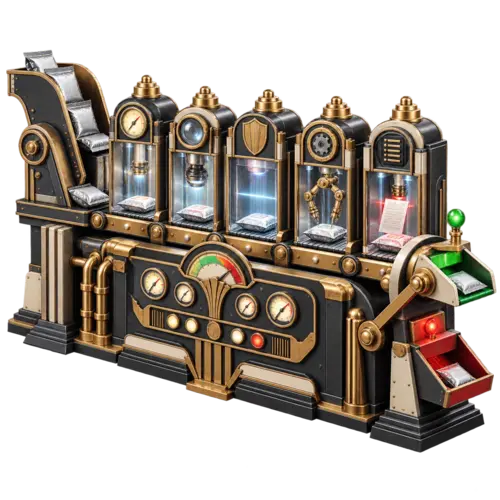
One warning still stops the gate
Imagine a release candidate with no reported errors and two warnings. The inspection has finished, but Check Runner marks it as failed. Both counts must reach zero for a pass.
The runner uses every check available to the official runner, including experimental checks. Requests to narrow the check list or categories are ignored. The installed Plugin Check version determines which checks are available.
Findings include a file, line, column, message and diagnostic code where Plugin Check supplies them. Use those details to locate the problem, make the change and check the revised plugin.

An amber warning is still a reason to stop. Only zero errors and zero warnings produces a pass.
A job reference is a receipt, not approval
For background work, request async: true. Check Runner returns a job reference while WordPress schedules the inspection. The default call runs synchronously.
Read the same job with plugin-check/job-status. Pending means it has not started; running means it has not finished. A complete job can contain a passing result, findings that fail the gate, or an execution failure.
Background execution depends on WordPress cron and the server’s PHP budget. A returned job reference does not guarantee the worker can start or finish. Investigate a stalled or interrupted run before requesting another.
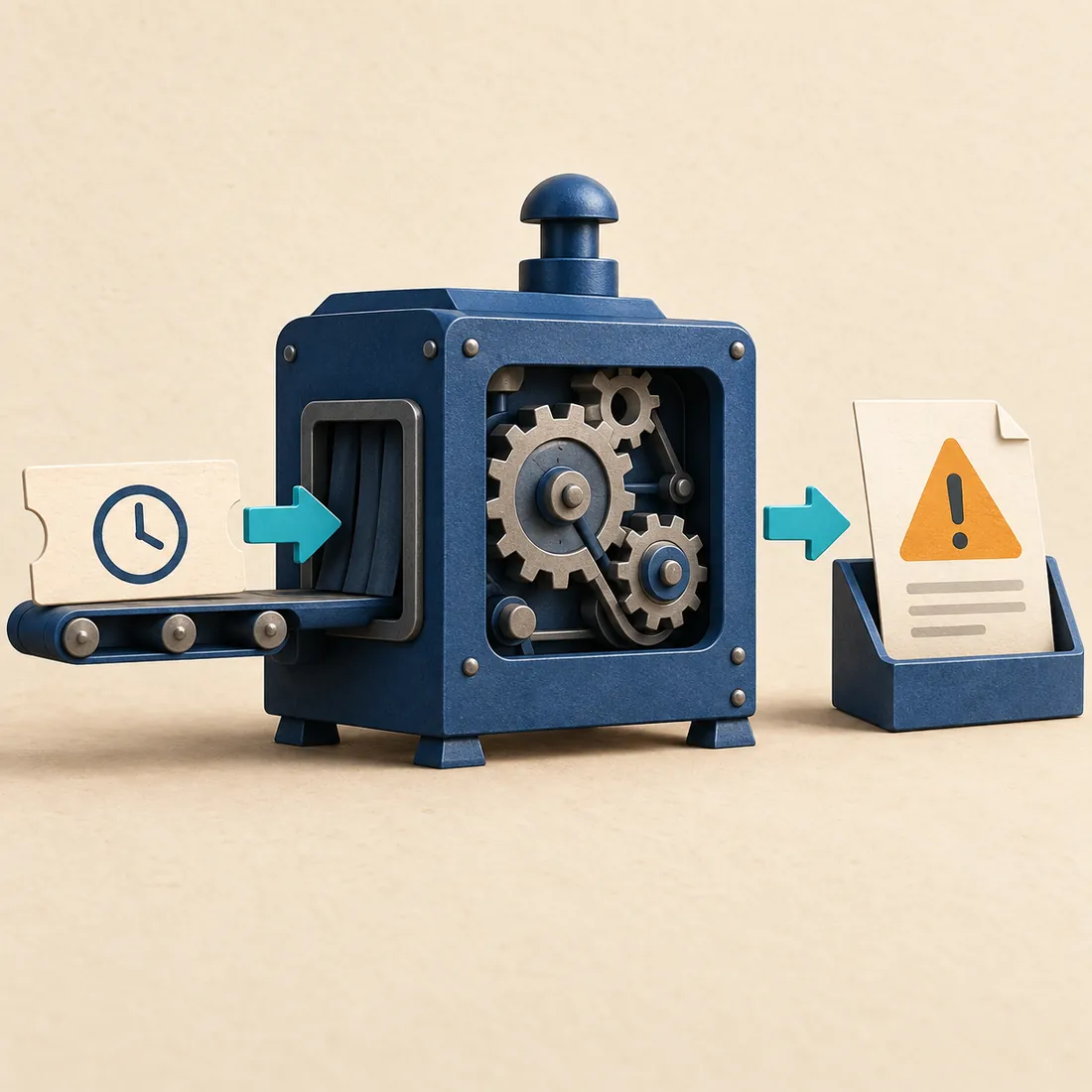
The receipt tracks one job. Follow it through to the stored result before judging the plugin.
From installed candidate to a usable result
1. Select the exact plugin
Install the candidate on a suitable test WordPress site with official Plugin Check active. Give the assistant its plugin slug or basename and select new-plugin or update mode for the intended review.
2. Run the complete inspection
Request the complete check, choosing background execution when needed. Keep the job reference and read its status. Scheduling success is not inspection success.
3. Read counts and findings together
Check whether execution completed, then read the pass state, error count and warning count. If the findings are truncated, the displayed list is incomplete even though the counts cover the returned inspection result.
4. Fix, check and test
Correct the findings and run a fresh complete inspection of the changed plugin. Also test its real features and integrations. A clean Plugin Check result does not prove that the plugin works correctly or guarantee WordPress.org approval.
The answer has a size limit
The default response includes at most 100 findings. max_results can raise this to 500. Errors appear before warnings, so a long error list can leave warning details outside the displayed response.
There is no pagination for the remaining findings. If truncated is true, use the official Plugin Check interface to inspect further details. Do not describe this response as a complete list of findings.
Two actions, with different permissions
plugin-check/run starts an inspection and requires the WordPress permission to activate plugins. plugin-check/job-status reads a stored job and requires the permission to manage site options.
Use an account authorised for both actions when working with background jobs. Check Runner does not fix source files, install the candidate or publish a release. This version has no job cancellation or deletion action.
Prepare the WordPress connection
Check Runner declares WordPress 6.9 or later and PHP 8.0 or later. WordPress 6.9 includes the Abilities API. Use a maintained PHP release supported by your site.
The official Plugin Check plugin must be installed and active. Connect an authenticated MCP client through the WordPress MCP Adapter and verify that the required actions appear in discovery.
Depending on your MCP configuration, an exposure layer such as MCP Expose Abilities may be needed to make the run action discoverable. Verify the connection before starting an inspection.
Know what your next check actually proves
Install Check Runner, confirm both actions are available, and ask for a complete inspection of your installed candidate. Read the final result and its limits before making the release decision.