
LinkedIn publishing strategy
Choose reach or clicks before you add the link.
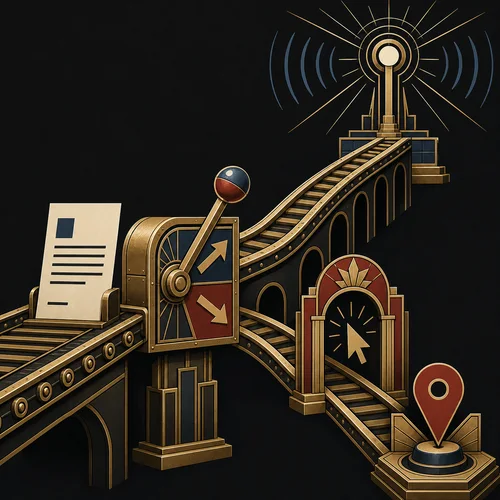
The real decision
The workaround was not the strategy.
We built a WordPress plugin that could publish posts to LinkedIn automatically. The tempting next step was to remove the link from the post and add it as the first comment, hoping to keep reach while still giving people a path back to the article.
LinkedIn made that harder than it looked. More importantly, the restriction forced a better question: are we publishing for reach, or are we publishing for clicks?
Ask this before you automate:
Reach
Clicks
Complexity
Three publishing choices
Each link placement optimizes for a different outcome.
The first-comment trick sounds like a small implementation detail, but it changes the product decision. The right choice depends on the result the post needs to create.
Link in the post
This is the direct traffic choice. It gives people an immediate click path, but the post may reach fewer people because the platform has less reason to keep it moving in the feed.
Link in the first comment
This is the workaround choice. It can be useful manually, but automating it means dealing with separate API permissions and a more fragile user setup.
No link in the post
This is the reach choice. The post stands on its own with image and copy, and the link can still be added manually when the situation calls for it.
What the API changed
The restriction clarified the strategy.
The Comments API required Community Management API access, and that product could not sit beside the posting products needed in the same LinkedIn app.
A two-app setup was possible in theory, but it would make the plugin harder to configure, harder to support, and easier to misunderstand.
The practical consequences:
Core publishing
Separate permissions
More authorization
A tactic, not the job
The simpler product
Choose the post's job
Decide between reach and clicks before you build the workflow.
A LinkedIn post should have a job. That job decides whether the link belongs in the post, in a comment, or nowhere at all.
Visibility
Value in the feed
Brand recall
Landing-page value
Direct path
For most everyday business posts, reach is the stronger default. Add the link manually when the post has a clear click job.
What stays in the product
The simpler feature is the stronger product.
The useful part of the automation stayed intact: publish from WordPress with the image and post copy. The part removed was the brittle tactic around comment automation.
What stayed
WordPress posts can still become LinkedIn posts automatically. Featured images still do the visual work in the LinkedIn feed, and the publishing flow stays understandable for normal site owners.
What we did not automate
We left out a separate Comments API setup, two LinkedIn app products and token paths for one small tactic, and a feature that would look clever while making the user experience worse.
Measurement
Measure the post by the job it was given.
The question is not whether every LinkedIn post sends traffic. The question is whether the post did the job you chose for it.
For reach posts
For click posts
For manual links
Compare over time
Earn complexity
Use your data
A simple workflow that consistently gets published usually beats a clever workflow that people stop using.
Frequently asked questions
When should a LinkedIn post include a link?
Should every LinkedIn post avoid links?
No. If the click is the point of the post, include the link. If the post is mainly for visibility and authority, it may work better without one.
Is the first-comment link tactic still useful?
It can be useful as a manual habit. The problem is not the tactic itself, but turning a small manual step into a complicated automation flow.
Why not build the two-app LinkedIn setup anyway?
Because it adds configuration, support, and token complexity for a feature that may not improve the main outcome. The cleaner product is easier to use and easier to trust.
The operating rule
Do not fight the feed by default.
LinkedIn is usually better at creating visibility than sending immediate traffic. Treat that as the default, then make deliberate exceptions.
The point is not to avoid links forever. Know what job the post is doing before the link decides the design.