
WordPress LinkedIn automation
Why We Built a Narrow WordPress-to-LinkedIn Publisher
A focused WordPress-to-LinkedIn plugin can publish once through LinkedIn’s official API, avoid duplicate reposts, and keep the workflow small enough to test and maintain.
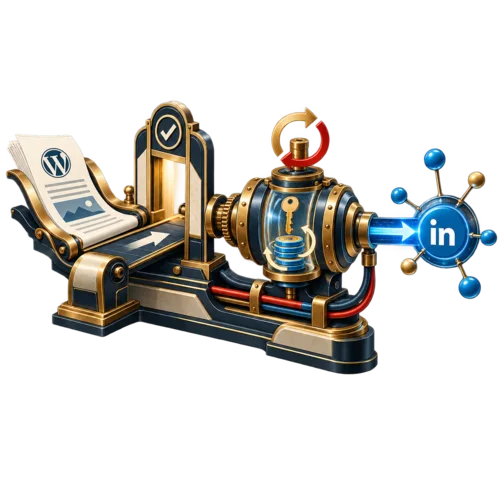
The problem was not sharing. It was repeating the work.
Every WordPress article created a second manual routine: copy the link, open LinkedIn, write the update, paste the URL, and repeat it at the next publish. When an editor fixed a typo, some tools published the same article again.
Devenia needed one narrow result: share a post to LinkedIn when it is first published, then leave later edits alone. That requirement also ruled out browser-login simulations, abandoned code, and plugin stacks that added more controls than the task needed.
Why a narrow integration can be easier to trust
Compare options by the operational problem they create, the access they require, and the output you can verify.
Feature overload
Large feature bundles add unrelated marketing tools, upsells, and paid tiers around one publishing task. A narrow integration keeps the scope to first-publish sharing.
Login simulation
Browser-login workarounds can trigger suspicious-activity checks or connection errors. Use LinkedIn’s official API and OAuth 2.0 instead.
Stale or repeat-prone code
Abandoned plugins are risky on a current WordPress workflow, and some repost after a typo fix. Separate first publish from later edits and expose token renewal before it becomes a failure.
What Devenia LinkedIn Autoposter does
The plugin has a small, testable contract. Check each behaviour against a real publish and keep the account connection under an administrator’s control.
At first publish, it should:
Official authorization
Use LinkedIn’s official API with OAuth 2.0, not scraping or simulated browser logins.
One share
Post only when a WordPress article is first published. Later edits and typo fixes do not create another LinkedIn post.
Per-post control
Let an editor exclude a specific article before it is shared.
Configurable text
Build the LinkedIn text from the title, excerpt, URL, and author with the {title}, {excerpt}, {url}, and {author} template tags. Review output before relying on it.
Renewal warning
Warn the administrator before the LinkedIn access token expires, so the connection can be renewed before publishing stops.
Narrow scope
Keep the WordPress side focused on one publishing action, without an unrelated marketing suite or forced upsell.
Connect WordPress to LinkedIn in four steps
LinkedIn still requires an app connection and the correct permissions. The plugin makes the setup path explicit, then removes the copy-and-paste step from each publish.
Create the LinkedIn app
Open the LinkedIn Developer Portal, create an app, and request only the permissions the integration needs for sharing. Review LinkedIn’s current app requirements before deployment, because permissions and review rules can change.
Add the authentication details
Copy the Client ID and Client Secret from the app’s Auth tab. Add the redirect URL shown in the WordPress plugin settings exactly, and keep secrets out of logs and tickets.
Connect WordPress
Install and activate the plugin in a controlled environment. Open Settings → LinkedIn Autoposter, enter the credentials, choose Connect to LinkedIn, and authorise the app.
Publish and verify one share
Publish a new WordPress post and confirm that LinkedIn receives exactly one clean share. A normal edit should not publish it again. Record the result and the post ID.
The boundary is token expiry
OAuth 2.0 keeps the connection on LinkedIn’s official path, but it does not make the connection permanent. LinkedIn currently issues access tokens with a 60-day lifespan; refresh-token availability depends on the app and permissions. See LinkedIn’s OAuth documentation for the current rules.
An administrator must reconnect when the token path requires it. The plugin warns before expiry when it can, and the reconnect step is small enough to include in a normal publishing checklist. That is the honest boundary: automatic first-publish sharing, with a recurring renewal step.
Quick answers before you install
Is it a full social scheduling suite?
No. It shares WordPress posts to LinkedIn at first publish and stays narrow.
How does it connect to LinkedIn?
It uses LinkedIn’s official API and OAuth 2.0. It does not scrape LinkedIn or simulate a browser login.
What happens after about 60 days?
The access token expires according to LinkedIn’s current policy. The plugin warns before expiry when it can, and an administrator reconnects from the plugin settings.
Set up the connection and verify the first share
The plugin is available on GitHub for publishers who want a minimal WordPress-to-LinkedIn workflow. Start by creating the LinkedIn app, add the redirect URL shown in the plugin settings, then publish one post and confirm that LinkedIn receives exactly one share.